

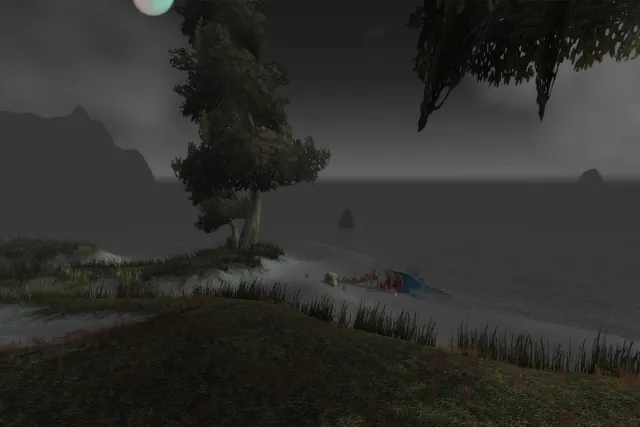
How to raise brightness in the game
| Setting | In-game name (English) | Korean | German | Range |
|---|---|---|---|---|
| Brightness | Brightness | 밝기 설정 | Helligkeit | 0–100 |
| Contrast | Contrast | 대비 | Kontrast | 0–100 |
| Gamma | Gamma | 감마 | Gamma | 0.3–2.8 |
Names come from the Forever client strings (build 71037); ranges come from the UI source file Graphics.lua.
The Options button in the Game Menu opens the settings window.
In the list on the left, choose Graphics under the System group, and the Brightness, Contrast and Gamma sliders are on one page.
Brightness moves from 0 to 100 in steps of 1, Contrast from 0 to 100 in steps of 1, and Gamma from 0.3 to 2.8 in steps of 0.1. Their tooltips say they control the brightness, the contrast and the gamma of the game.
The Defaults button of the settings window does not reset brightness alone.
A prompt asks whether to reset all settings or only this category, which means the whole Graphics page, and choosing all settings also resets interface and add-on settings.
Path to the sliders
- Open the Game MenuPress the Options button.
- System > GraphicsPick Graphics in the left list.
- Raise Brightness a littleThe range is 0–100; avoid one big jump.
- Fine-tune Contrast and GammaContrast 0–100, Gamma 0.3–2.8.
In dark dungeons, at night and in caves
In dark dungeons and at night, one slider may not fix everything.
Stand in a dark place, raise Brightness a little first, and if that is not enough raise Gamma by 0.1 at a time.
If bright places feel too strong afterwards, lower the value a little.
This order is a general approach based on the slider names and ranges, and the UI source does not describe the exact effect of each slider on a scene.
Making the screen itself brighter outside the game
| Where | Path | Checked source |
|---|---|---|
| Windows | Settings > System > Display > Brightness | Microsoft Support |
| Mac | System Settings > Displays > Brightness | Apple Support |
| NVIDIA | Control Panel Help: Adjust desktop color settings | NVIDIA Control Panel Help |
| External monitor | The monitor’s own buttons | Microsoft Support |
If the sliders are not enough, the screen itself may be dim.
In Windows, open Settings > System > Display and move the Brightness slider.
A desktop PC with an external monitor may not show this slider, and then the monitor’s own buttons change the brightness.
On a Mac, open the Apple menu > System Settings > Displays (you may need to scroll the sidebar) and drag the Brightness slider.
Macs with an ambient light sensor also offer automatic brightness.
With an NVIDIA card, the NVIDIA Control Panel has a page, Adjust desktop color settings, with Brightness, Contrast and Gamma sliders.
The help page says these values adjust the desktop image, and how they apply to a game screen is not stated there, so it could not be confirmed.
Menu names can differ by Windows, macOS and driver version.
Summary: where to start
Work in this order: the in-game Brightness 0–100, Contrast 0–100 and Gamma 0.3–2.8, then the Windows or Mac display brightness, the monitor buttons and the graphics control panel.
Change one place, look at the screen, then move on, and you will see which value helped.
To undo changes, use the Defaults button in the settings window.
The in-game menus here come from the UI source, not from a playthrough.