
The short answer: guild chat and one Discord channel talk to each other
Discord integration lets your guild chat and a chosen Discord channel exchange messages.
Blizzard says it works in both modern World of Warcraft and WoW Forever.
Each player links a Discord account to their Battle.net account in the game's Options.
Discord admins enable 3 channel permissions before the guild can be connected.
A guild leader or an officer with the correct permissions then links the guild in game.
| Who | What they do | Where |
|---|---|---|
| Each player | Links Discord to Battle.net | Esc > Options > Social |
| Discord admins | Enable channel permissions | The chosen Discord channel |
| Guild leader or officer | Links the guild to a channel | J > Roster > Guild Settings |
Summary of Blizzard's U.S. English article.
This guide follows Blizzard's article dated November 4, 2026 (18:00 UTC).
We compared its U.S. English, German and Korean pages, and the steps match.
Blizzard first described the feature for modern WoW in June 2026.
This is a summary of official material, not a hands-on test by us.
Details seen only in Blizzard's screenshots are labelled that way.
Link your Discord account to Battle.net
The link connects your Discord account to your Battle.net account.
Log in to Discord first, because Blizzard says you will be asked to confirm.
Open the Game Menu with Escape, then Options, then the Social tab.
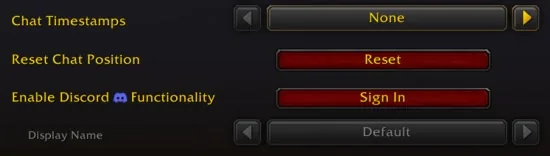
The option is called Enable Discord Functionality.
Linking your account
- Log in to DiscordDo this before you start
- Open the Social tabEsc > Options > Social
- Enable Discord FunctionalitySign In on Blizzard's Forever screenshot
- Finish on the extra screensConfirm the connection
In Blizzard's Forever screenshot, that row has a Sign In button.
Choosing to connect takes you to extra screens that finish the link.
Blizzard's images show Connect to Discord, then Confirm connection, then You're connected.
The confirm screen says you can only connect 5 different Discord accounts in 30 days.
That limit appears on the screen, not in the article's written text.
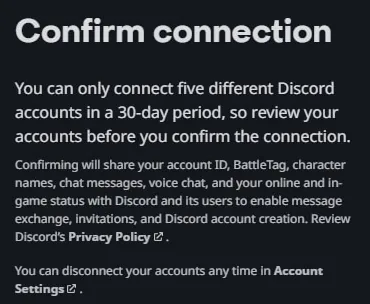
The English screen also lists what confirming shares with Discord and its users.
It names your account ID, BattleTag, character names, chat messages and voice chat.
It also names your online and in-game status.
Blizzard's stated reason is message exchange, invitations and Discord account creation.
The same screen says you can disconnect at any time in Account Settings.
Discord side: the 3 channel permissions
Administrators of the guild's Discord do this part first.
They enable 3 permissions so guild chat can connect to the chosen channel.
| Permission | Blizzard's description |
|---|---|
| Manage Channels | Ability to edit channel settings |
| View Channel | Can see and read the channel |
| Send Messages | Can post messages in the channel |
Names and descriptions from Blizzard's U.S. English article.
Blizzard does not say whether to grant these to a role, a member or anything else.
The in-game window offers only channels that have linking permissions available.
So if a channel is missing from the list, check these permissions first (our reading).
In game: link the guild to a Discord channel
The rest of the connection happens inside World of Warcraft.
The guild leader or an officer with the correct permissions can do it.
Blizzard does not say which guild rank permission counts as correct.
Linking the guild
- Press JGuild & Communities
- Roster tabRight side of the panel
- Guild SettingsBottom right of the panel
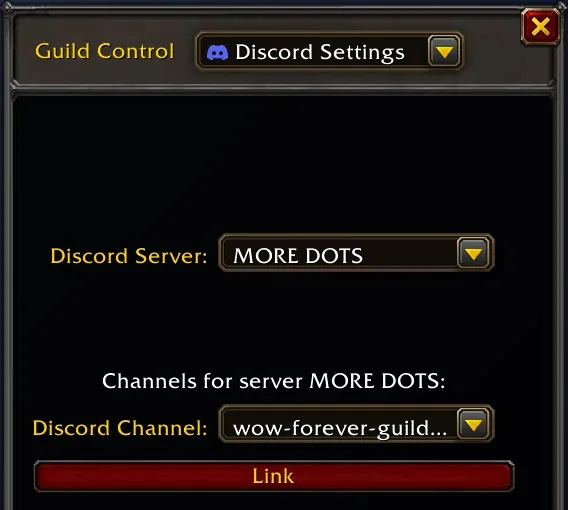
- Guild Control dropdownSelect Discord Settings
- Click a serverServers you belong to
- Pick a channel, click LinkLinkable channels only
The window lists all Discord servers you belong to.
Since the list shows your own servers, link your own account first (our reading).
Once linked, Blizzard's screenshot shows Discord Linked with the server and channel.
It also shows an Unlink button in the same window.
Display name: what your Discord messages show
Display Name sets the name shown when your chat messages arrive from Discord.
On Blizzard's screenshot it sits under Enable Discord Functionality in the Social tab.
| Option | Name shown |
|---|---|
| Default | Game-defined default, currently Last Online Character |
| Last Online Character Name | Last online character for your Battle.net account in this guild |
| Discord Global Name | Your Global Name from Discord |
Options from Blizzard's U.S. English article.
Blizzard says currently, so the default could change later (our reading).
Routing: regular /guild chat or a dedicated /discord channel
Guild leaders can change the guild's Discord settings at any time.
They choose whether Discord traffic goes to regular /guild chat or a new /discord channel.
| Route | Prefix in Blizzard's screenshots | Chat tab shown |
|---|---|---|
| Regular /guild chat | [Guild] | Guild |
| Dedicated /discord channel | [Guild Discord] | A separate Discord tab |
Blizzard does not label these chat screenshots as modern WoW or WoW Forever.
Blizzard's linked-window screenshot shows a checkbox for this.
The checkbox reads Separate Discord chat from Guild chat.

Blizzard says you can tell whether a message came from Discord or from the game.
In its screenshots, a Discord icon sits beside the names of people writing from Discord.
Its example of a separate channel shows [Guild Discord] messages in their own chat tab.
You can adjust your chat tabs to suit, Blizzard says.
A separate channel suits guilds that want /guild kept quieter (our suggestion).
Members who have not linked
If a player has not linked, their in-game messages do not show in the Discord channel.
Blizzard's screenshot shows this notice on Discord in place of the message.
It reads: Sent a message to guild chat but has not yet linked their Discord account.
So linking the guild does not by itself carry everyone's in-game messages to Discord.
Blizzard's article does not say whether the notice can be turned off.
If the sign-in does not go through
Blizzard's article has no troubleshooting section.
A Blizzard Customer Support post on the U.S. forum covered this on August 13, 2026.
Sign In in the game should open a page where you continue to Discord.
You can also start from Account Management, under Connections, with the Discord option.
On the Discord page, scrolling to the bottom should let you click Authorize.
The last page shows both accounts, and confirming there finishes the link.
If none of that happens, the post suggests checking for pop-up blockers.
The post was written before WoW Forever's launch, so screens may have changed since.
What Blizzard's article does not state
As of November 5, 2026, Blizzard's article does not cover the following.
Classic: it names only modern World of Warcraft and WoW Forever, no other Classic version.
Platforms: it gives no limits by device or by Discord app.
Messages: it gives no length, rate, attachment or image rules.
Guilds: it does not say whether one guild can link several channels.
Unlinked Discord users: it does not say whether they can post into guild chat.
Rulesets: it does not mention Normal, PvP, Roleplaying, RP-PvP or Hardcore realms.
Regions: it lists no regional limits, and we found the same steps on all three pages.
The article's text does not explain how to set up or use Discord voice features.
The account confirm screen does list voice chat as shared information.
Blizzard's October beta notes say Voice Chat can use Discord Voice under Audio settings.
That choice applies to the entire party, based on the party leader's setting.